Project workflow reference
Agiflow organizes work into projects, work units, tasks, and supporting resources. This page lists the structure, statuses, templates, and settings that make up a project board.
Last updated
01 — Projects
A project is the top-level board in Agiflow. It contains work units, tasks, statuses, files, vault environments, and workflow state.
| Field | Description |
|---|---|
| Name | The display name of the project. |
| Key | An optional short identifier shown next to the name. |
| Description | A short summary of the project purpose. |
| Owner | The organization member who owns the project. |
| Path | An optional filesystem path used for development integrations. Auto-detected if not set. |
| Docker image | An optional container image for remote development environments. |
| Archive state | Projects are either Active or Archived. Archived projects are read-only. |
| Setup hooks | Shell commands that run before AI planning starts on the project. |
View modes
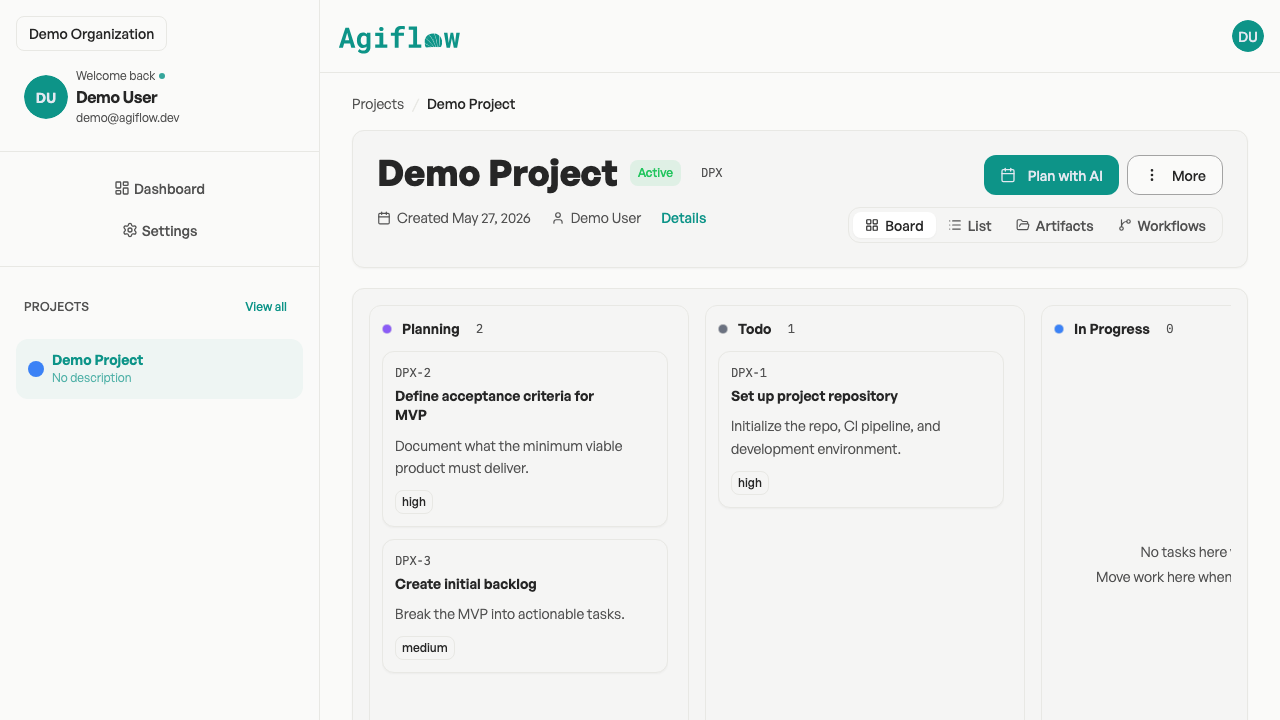
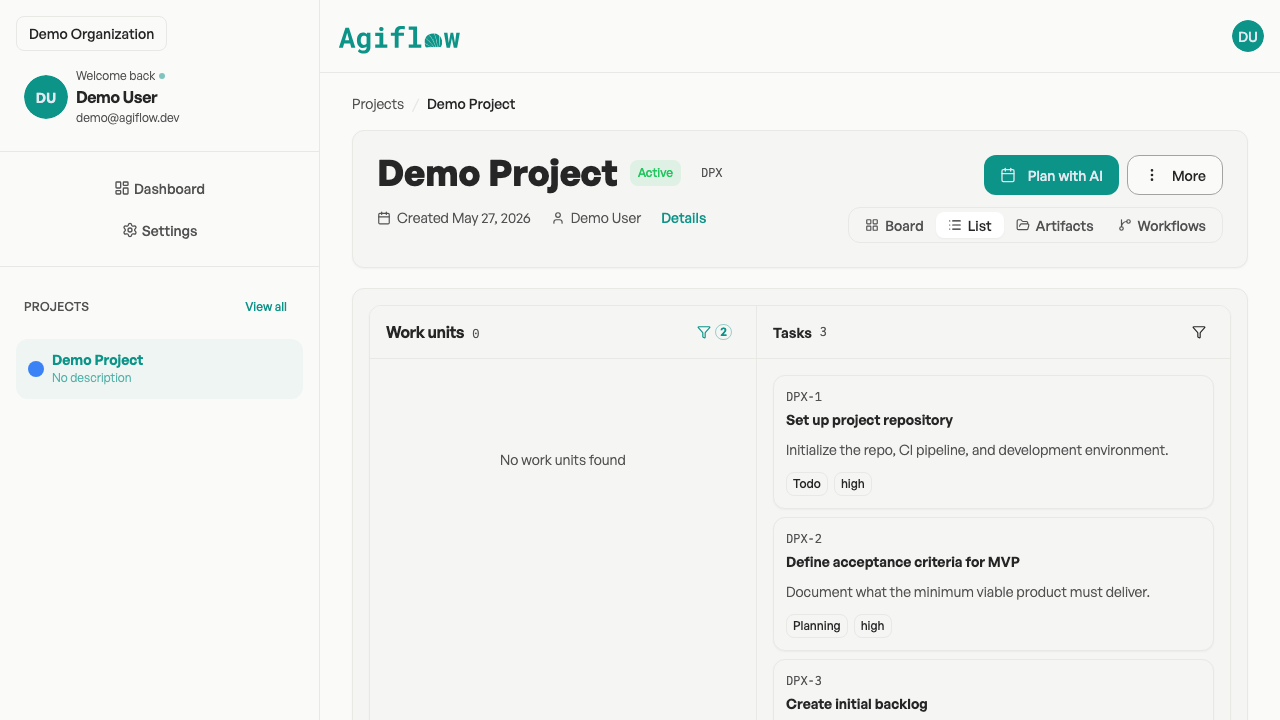
Every project can be viewed in three standard modes:
| Mode | Label | Purpose |
|---|---|---|
| Board | Board | Kanban-style columns by status. |
| List | List | Filterable, sortable table of tasks. |
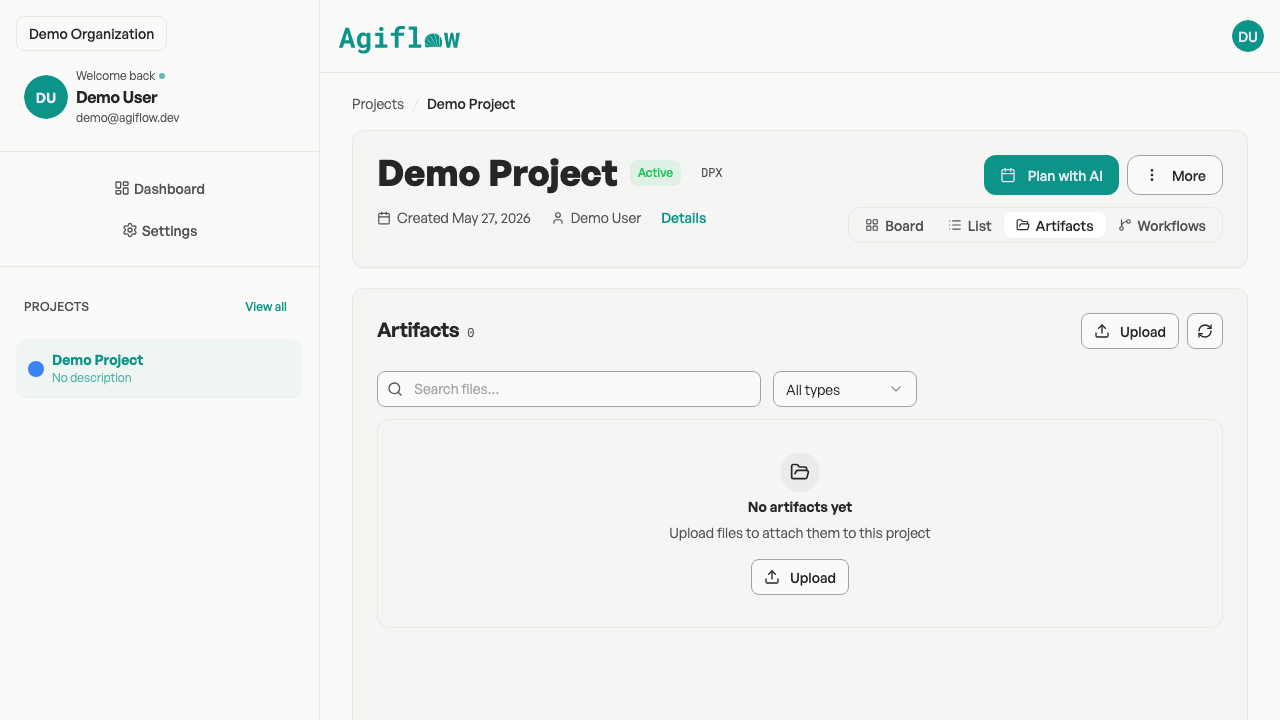
| Artifacts | Artifacts | Files uploaded or generated within the project. |
When the workflow feature is enabled, a Workflows tab is also available for viewing active and historical workflow runs.
02 — Work units
Work units group related tasks into features, milestones, or epics. They expose progress and help coordinate larger bodies of work.
Work unit types
| Type | Use |
|---|---|
| Feature | A deliverable slice of work. |
| Epic | A large initiative that spans multiple features. |
| Initiative | A strategic program composed of multiple epics or features. |
Progress tracking
- Total task count
- Completed task count
- Current task title
- Completion percentage
Link to guide: How your board is organized
03 — Tasks
A task is the smallest tracked work item in Agiflow.
| Field | Description |
|---|---|
| Title | Short name of the task. |
| Description | Markdown-supported details and context. |
| Status | The project-specific column the task currently sits in. |
| Priority | low, medium, or high. |
| Assignee | The organization member or agent responsible for the task. |
| Due date | Optional deadline. |
| Comments | Discussion thread on the task. |
| Acceptance criteria | Checklist of conditions that define completion. |
| Tags | Classification labels for filtering and grouping. |
Link to guide: Ask your AI to work on a task
04 — Status categories
Each project has its own set of statuses (columns). Every status belongs to a semantic category that controls behavior.
Canonical statuses and behavior
| Status | Key | Started | Completion | Terminal | Blocked | Agent pickable |
|---|---|---|---|---|---|---|
| Planning | planning | No | No | No | No | No |
| Todo | todo | No | No | No | No | Yes |
| In Progress | in_progress | Yes | No | No | No | No |
| Testing | testing | Yes | No | No | No | No |
| Review | review | Yes | No | No | No | No |
| Done | done | No | Yes | Yes | No | No |
| Blocked | blocked | No | No | No | Yes | No |
| Cancelled | cancelled | No | No | Yes | No | No |
Behavior semantics
- Started — Tasks in this status are considered actively in progress. Timestamps such as startedAt are set when a task enters any started status.
- Completion — Tasks in this status are considered finished. completedAt is recorded.
- Terminal — Tasks in a terminal status are finished and no longer expected to change.
- Blocked — Tasks in this status require human intervention before proceeding.
- Agent pickable — Tasks in this status are visible to the agent daemon for automatic pickup.
Default colors
| Status | Color |
|---|---|
| Planning | Violet (#8B5CF6) |
| Todo | Gray (#6B7280) |
| In Progress | Blue (#3B82F6) |
| Testing | Amber (#F59E0B) |
| Review | Light Violet (#A78BFA) |
| Done | Green (#10B981) |
| Blocked | Red (#EF4444) |
| Cancelled | Gray (#6B7280) |
05 — Templates and starter boards
When you create a project, you can start from a template or choose a blank board. Templates seed custom statuses, starter tasks, and default agents.
Marketing
| Status | Key | Behavior |
|---|---|---|
| Ideation | ideation | Not started |
| Brief | brief | Not started |
| In Progress | in_progress | Started |
| Review | review | Started |
| Approved | approved | Started |
| Published | published | Completion |
| On Hold | on_hold | Blocked |
Starter tasks: Define target audience personas, Create content calendar, Draft brand voice guidelines, Set up analytics tracking.
Default agents: Content Strategist, Social Media Manager.
Sales
| Status | Key | Behavior |
|---|---|---|
| Lead | lead | Not started |
| Qualified | qualified | Started |
| Proposal | proposal | Started |
| Negotiation | negotiation | Started |
| Closed Won | closed_won | Completion |
| Closed Lost | closed_lost | Cancelled |
Starter tasks: Define ideal customer profile, Create pitch deck template, Map out objection-handling playbook, Set up follow-up cadence.
Default agents: Sales Rep, Account Manager.
Software
| Status | Key | Behavior |
|---|---|---|
| Planning | planning | Not started |
| Todo | todo | Agent pickable |
| In Progress | in_progress | Started |
| Testing | testing | Started |
| Review | review | Started |
| Done | done | Completion |
| Blocked | blocked | Blocked |
| Cancelled | cancelled | Cancelled |
Starter tasks: Set up project repository, Define acceptance criteria for MVP, Create initial backlog.
Default agents: none.
Link to guide: Start from a project template
06 — Files
Files in Agiflow are stored as artifacts. Metadata lives in the project data store; file bytes live in object storage.
Artifact fields
| Field | Description |
|---|---|
| Key | Unique identifier within the project. |
| Name | Display filename. |
| Status | pending or uploaded. |
| Size | File size in bytes. |
| Content type | MIME type of the file. |
| Previewable | Whether the file can be previewed in the UI. |
| Labels | Optional classification tags. |
| Created at | Upload timestamp. |
| Updated at | Last modification timestamp. |
Artifacts can be linked to a project, a task, or a work unit.
Link to guide: Manage project files
07 — Environments and secrets
A vault environment is a named deployment context within a project. Each environment holds encrypted key-value entries and supports role-based read/write permissions.
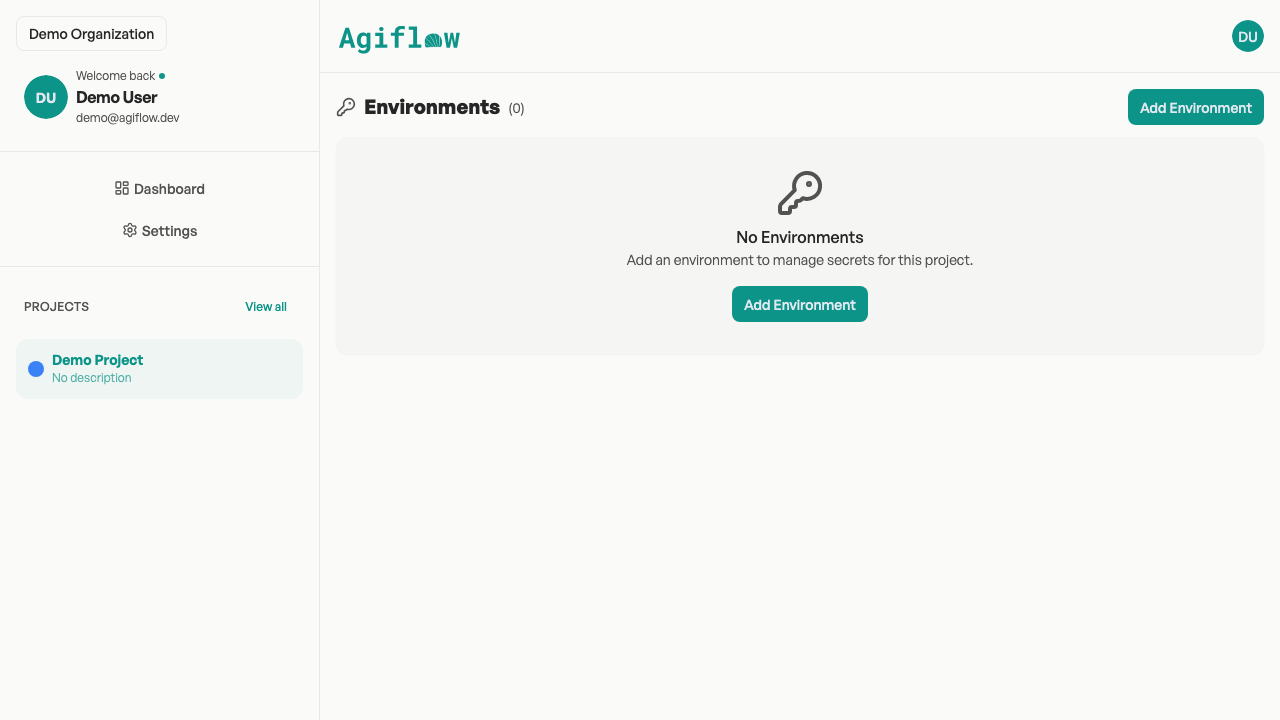
Common uses include API keys, database URLs, feature flags, and deployment credentials. AI assistants can read vault entries when scoped to the project.
Link to guide: How to store project secrets
08 — Workflow locks
Workflow locks coordinate active work against a specific resource composition: a project, a work unit, a task, or any combination of those.
Lock behavior
- A lock is acquired before a workflow run starts.
- The lock is released when the run completes or fails.
- If the same resource composition is already locked, Agiflow returns a conflict instead of starting duplicate work.
Locks prevent race conditions when multiple assistants or CLI commands target the same task or work unit simultaneously.
Link to guide: Manage workflow locks
Link to reference: CLI command reference
09 — Related guides
How your board is organized
Projects, work units, tasks, and board layout
Ask your AI to work on a task
Choosing tasks and reviewing AI output
Start from a project template
Picking and customizing templates
Manage project files
Uploading, previewing, and deleting artifacts
How to store project secrets
Creating environments and adding secrets
Manage workflow locks
Acquiring and releasing locks with the CLI
Invite your team and control project access
Members, roles, and project visibility
How to upgrade when you hit a plan limit
Plan limits and upgrading
CLI command reference
Exact commands, flags, and exit codes