How your board is organized
Published · Last updated
Agiflow uses three levels to keep work organized. Understanding them takes about two minutes and makes everything else make sense.
At a glance
Agiflow organizes work into three levels: Projects contain Work Units, which contain Tasks. Each task moves through one of eight board statuses from Planning to Cancelled, with templates and team access layered on top.
Projects define the boundary of a goal, Work Units group related tasks into manageable streams, and Tasks are the individual jobs your AI assistant can execute. Templates seed custom board lanes and starter tasks for specific workflows, while team access is managed at the organization level through team assignments.
01 — The simple model
Think of your work like a binder. A Project is the binder itself — one per goal, product, or client. Inside the binder, you have sections called Work Units — clusters of related tasks that keep work from getting mixed up. Inside each section, you have Tasks — individual jobs you can actually do and tick off.
This three-level model exists because most real work has natural grouping. Tasks rarely live in isolation; they belong to a larger piece of work, which belongs to a larger goal. The model is flexible enough for a solo freelancer tracking one client and robust enough for a team running multiple products.
02 — Projects
A Project is the big container. It holds your work units, tasks, files, team settings, and AI connections. When you create a project, you are defining the boundary of a goal: "Client A Website," "Q3 Marketing," or "Mobile App Launch."
Projects are more than folders. Each project has its own board lanes and its own file storage. Team access is managed at the organization level, and projects are made available to members through their teams. This separation means work from one project never leaks into another, and your AI assistant always knows which context to work within.
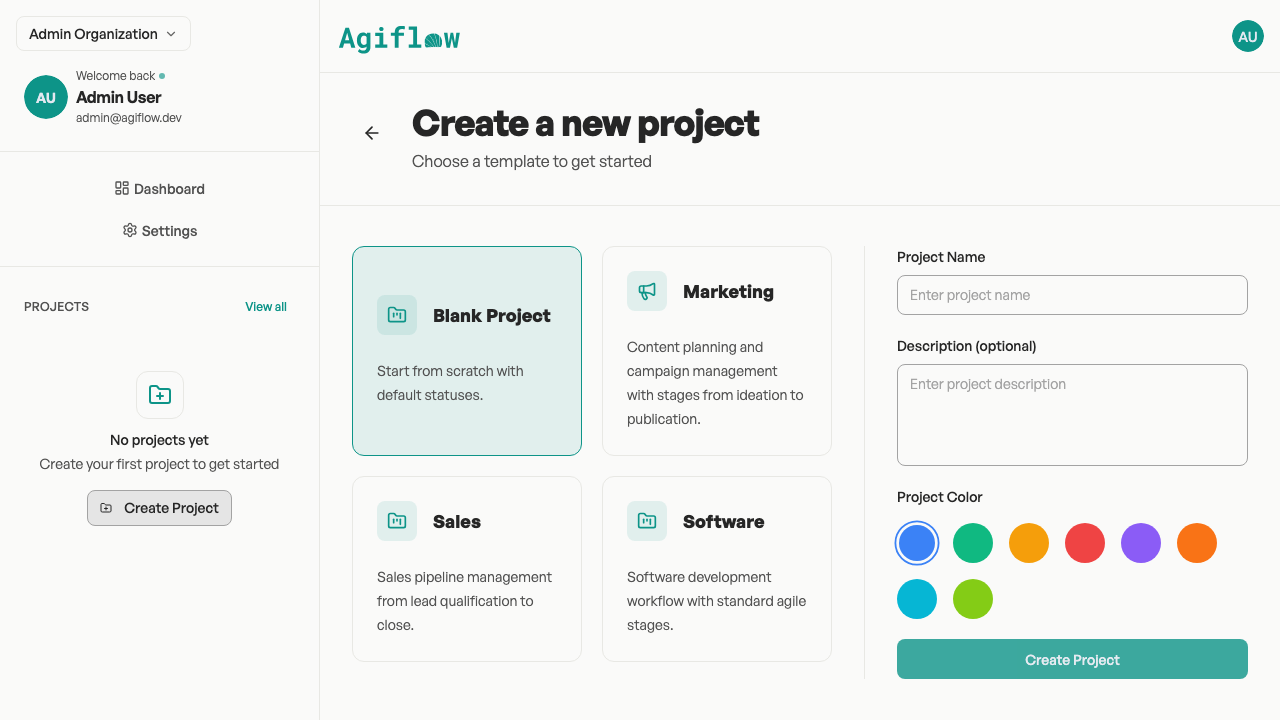
Every project starts either blank or from a template. A blank project gives you the standard board lanes and a clean slate. A template gives you custom lanes, starter tasks, and pre-configured AI agents suited to a specific workflow. The reason templates exist is that different kinds of work move through different stages: marketing content flows from ideation to publication, while sales work moves from lead to closed deal.
03 — Work units
Inside a project, Work Units are the chapters. They bundle related tasks so you can think about work in meaningful chunks rather than an endless list of individual items.
Work Units map to the way humans naturally plan. When you think about "launching a podcast," you do not think about fifty isolated tasks — you think about groups like "Recording setup," "Episode production," and "Distribution." Each of those groups is a Work Unit.
Work Units also act as filters on your board. You can view all tasks across a project or focus on a single Work Unit to see only the work in that stream. This is useful when you want to hand off a whole stream to a teammate or review progress on one slice of the project.
04 — Tasks
A Task is one job. It is the smallest unit of work in Agiflow, and it is the thing your AI assistant can pick up and execute.
Tasks carry a title, description, status, priority, and optional acceptance criteria. The status tells you where the task sits in your workflow. The priority tells you what to tackle first. The acceptance criteria tell your AI assistant — and future you — what "done" actually means.
Tasks can exist inside a Work Unit or sit directly on the project board. The flexibility matters because some work is tightly grouped and some is genuinely standalone.
05 — Statuses and board lanes
Every task has a status label that places it on a board lane. The default board has eight lanes, each with a specific meaning:
The task is being refined and scoped. It is not yet ready to start.
The task is approved and ready for pickup. This is the clearest signal that work can begin.
Someone is actively working on this task right now.
The task is complete enough to run through tests or validation.
The task awaits human review and approval.
The task is finished and checked.
The task is paused and needs human intervention before it can resume.
The task was abandoned and will not be completed.
The reason for eight lanes rather than a simpler four is that real work has more nuance than "not started / doing / done." Testing and Review are distinct phases with distinct owners: the agent does the work, then tests it, then a human reviews it. Blocked means the task is paused and needs intervention before it can resume. Cancelled is a terminal state: the work will not continue. These two lanes keep the board honest about what is actually happening, rather than letting stalled work pile up in "In Progress."
Your board may show different lanes if your project was created from a template. Marketing projects use lanes like Ideation, Brief, and Published. Sales projects use Lead, Qualified, and Closed Won. The underlying idea is the same: work moves from left to right, and each lane has a clear definition of what it means to be in it.
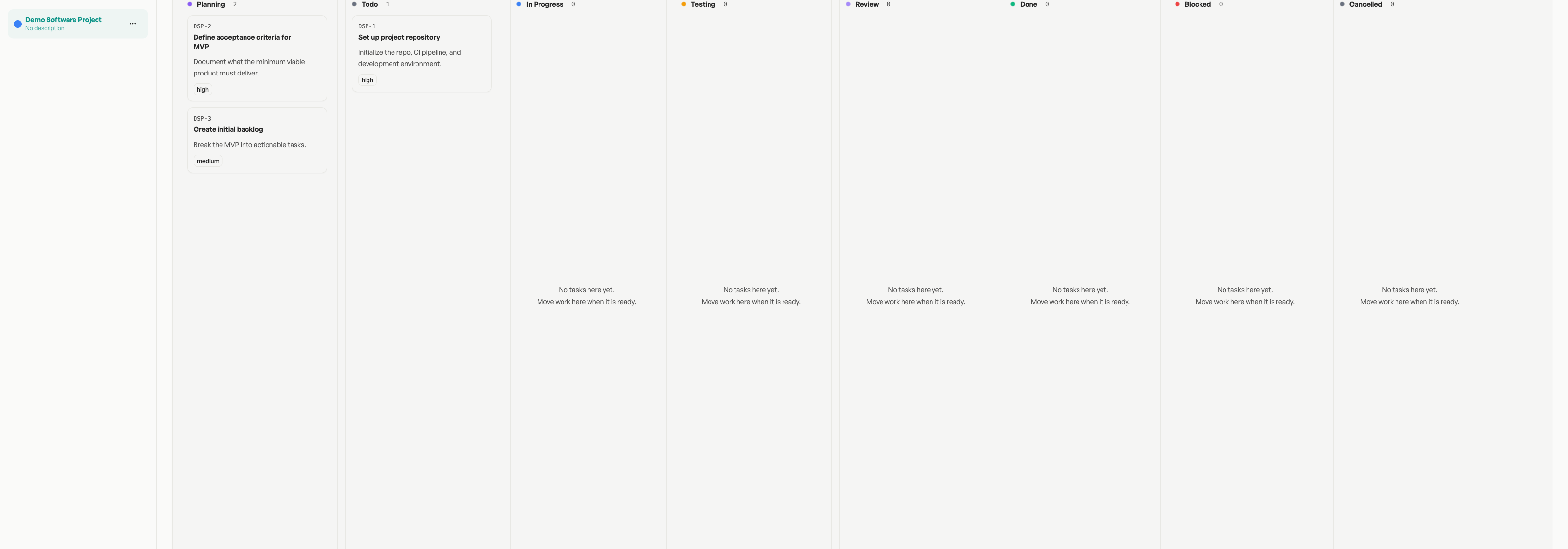
Todo tells everyone that a task has enough context to start. Your connected AI assistant can still see the board you allowed, but Todo is the clearest signal that the task is approved and ready to work on.
06 — Templates
Templates are starting points. When you create a project from a template, Agiflow seeds the board with custom status lanes, starter tasks, and AI agents that understand the domain.
There are three built-in templates:
- Marketing — For content planning and campaign management. Lanes move from Ideation through Brief, In Progress, Review, Approved, and Published. Starter tasks include defining audience personas and creating a content calendar. AI agents include a Content Strategist and a Social Media Manager.
- Sales — For pipeline management. Lanes move from Lead through Qualified, Proposal, Negotiation, and Closed Won (or Closed Lost). Starter tasks include defining your ideal customer profile and building a pitch deck. AI agents include a Sales Rep and an Account Manager.
- Software — For agile development. Lanes match the default board (Planning through Done) with the addition of Blocked and Cancelled. Starter tasks include setting up the repository and defining MVP acceptance criteria.
You can also start with a Blank Project, which gives you the default eight lanes and no starter tasks. This is the right choice when your workflow does not match any of the built-in templates or when you want to build your own structure from scratch.
07 — Files and project context
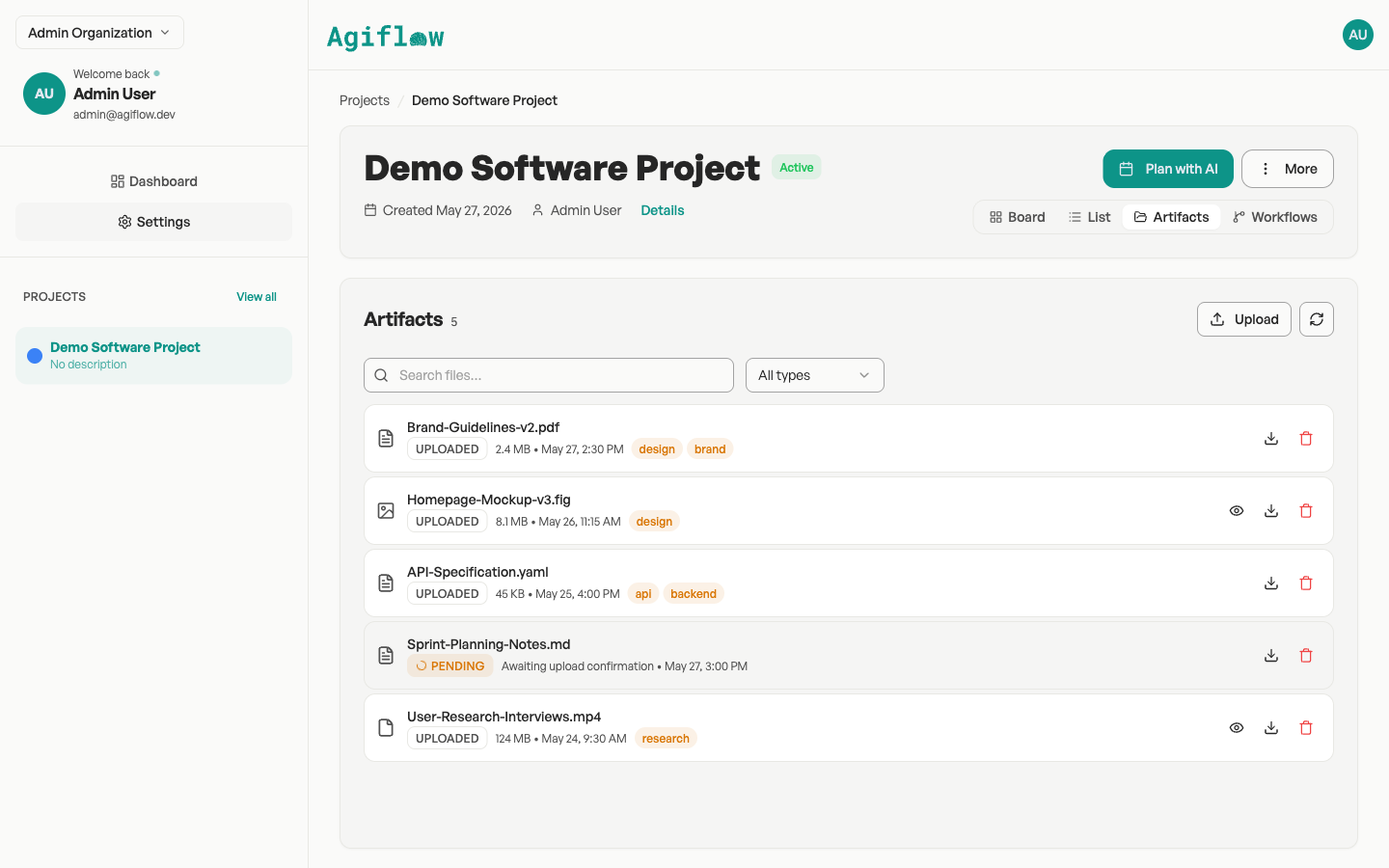
Every project has an Artifacts tab where files live. This is where you upload specs, designs, documents, and references that your AI assistant needs to do its work well.
The reason files are attached to projects rather than tasks is that context is usually shared across many tasks. A brand guidelines PDF is relevant to every marketing task in the project, not just one. Keeping files at the project level means your AI assistant can reference them whenever they are needed, without you having to attach the same file to ten different tasks.
You can also store sensitive values — API keys, tokens, environment variables — in the project vault. The vault is separate from Artifacts because secrets require stricter access controls and should never be mixed with general project files.
08 — Team access
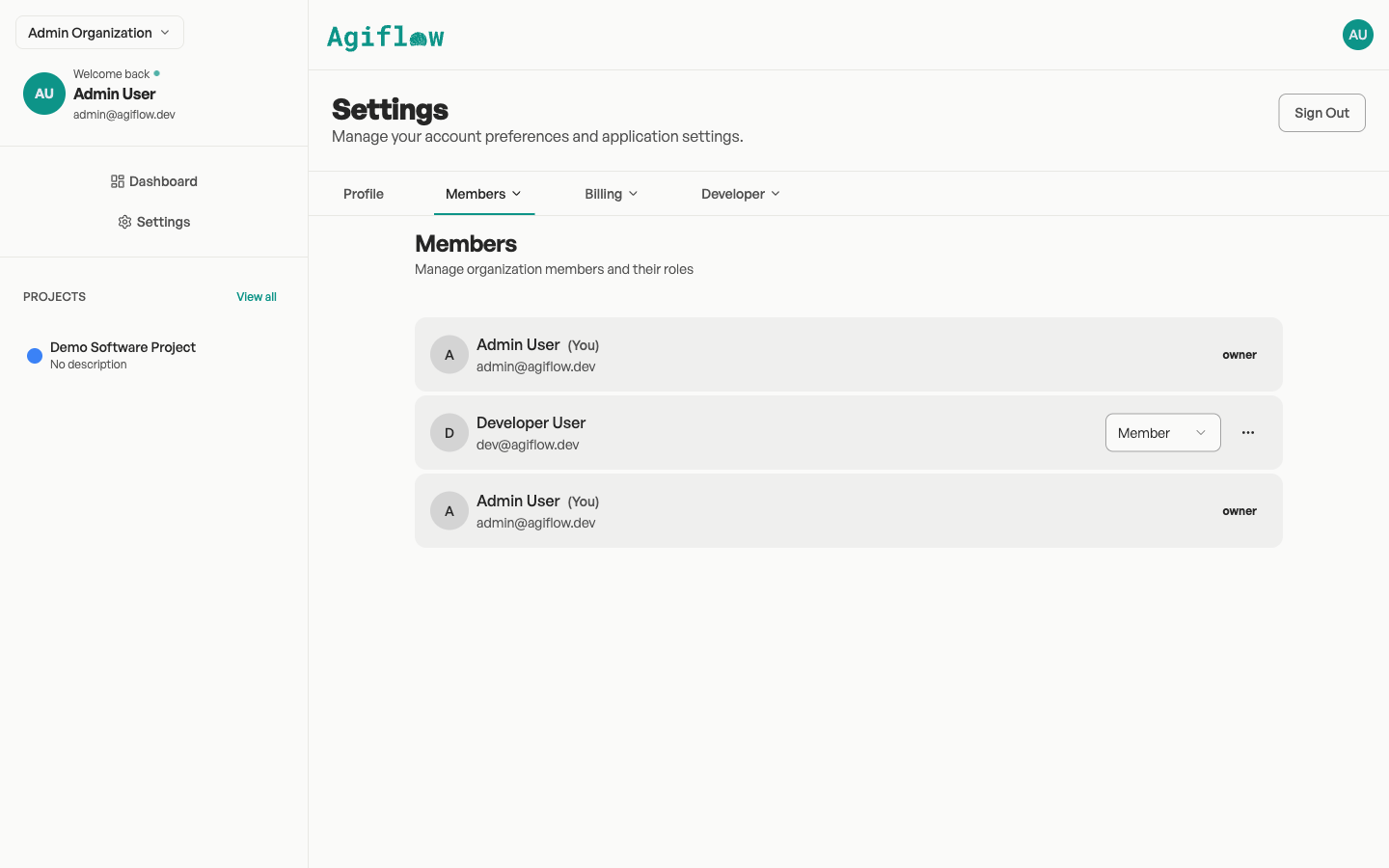
Projects live inside an organization, and team access is controlled at the organization level. Owners and admins can create, edit, and delete projects. Members see the projects their teams are assigned to and can interact with tasks on those boards.
Team access matters because your AI assistant works within the boundaries you set. If a teammate's teams are not assigned to a project, they cannot see its tasks or files. If an AI agent is connected to a project, it can read the board, pick up Todo tasks, and update statuses — but only for that project.
The project header shows who owns the project and when it was created. From there, you can open the project details, manage environments and secrets, or start a planning chat with your AI assistant.
Where to go next
This page explains how your board is organized. When you are ready to act on that understanding, these guides show you how: